

Audio capture
Your microphone and the audio playing on your Mac are recorded by the Mac app.
Privacy, explained plainly
TapScribe creates the transcript on your Mac instead of sending the meeting audio to a cloud transcription service. You control where the recording lives and what you do with the transcript afterwards.
Local transcription is one part of a private workflow. This page also explains model downloads, licensing, updates, synced folders and the choices that can move information beyond your Mac.
The local path
TapScribe captures your microphone and Mac audio, then uses an on-device speech model to create the transcript. The meeting does not need a note-taking bot to join the call.
Your microphone and the audio playing on your Mac are recorded by the Mac app.
The speech-to-text model runs on the Mac after it has been downloaded.
The recording and transcript stay together so you can review important wording against the audio.
The honest boundary
Model setup, licensing and software updates use separate network connections. These connections support the app without sending your meeting audio for transcription. The services receive ordinary connection information, such as your IP address.
Initial setup downloads the Parakeet TDT v2 speech model from Hugging Face. Transcription then loads the downloaded model on your Mac. Optional speaker separation downloads additional models from Hugging Face. Model downloads do not send your recordings for transcription.
Activation, validation and deactivation contact Polar. Requests use your licence key, activation identifiers and a generated Mac label. They do not include meeting audio or transcript text. Activation needs internet access; an activated Mac has a 30-day allowance from its last successful validation.
Sparkle checks the release feed at tapscribe.app. Weekly checks are on by default and can be switched off in Settings → Updates. You choose when to download and install. Sparkle system-profile reporting and automatic update downloads are disabled in the current configuration.
New installations save recordings in ~/Documents/TapScribe. If iCloud Desktop & Documents syncing is enabled, this default folder can already sync. iCloud, Dropbox and other sync or backup tools may upload files in folders they manage.
Copying, exporting or pasting a transcript into another app places that copy under the other app’s data handling.
Cloudflare hosts the website; PostHog US Cloud measures website use; Polar handles checkout and licence infrastructure. Information you provide when buying or emailing support is separate from local meeting transcription. Avoid sending confidential recordings or licence keys in a support email.
Website only
We use PostHog US Cloud to understand website visits, referral sources, campaign labels, download clicks and use of the sample demo. A pseudonymous browser identifier is stored in local storage, and campaign context is kept in session storage. The service receives ordinary connection information.
This website measurement does not run inside the Mac app. We do not send recordings, real transcripts, licence keys, email addresses, form or clipboard contents, or URL query strings to website analytics. Session replay, automatic click capture, console logs and automatic exception capture are disabled.
A download click does not establish an installation or purchase. Polar handles checkout separately. Verified order notifications send a pseudonymous order reference, purchase amounts, currency and refund totals to PostHog so we can measure sales. Free gift orders are counted separately. We do not send customer names, email addresses, payment details or licence keys in these events, and we do not link them to individual website visitors. We respect browser Do Not Track and Global Privacy Control signals. You can also turn website analytics off for this browser.
Files you control
Choose where recordings live. Keep the transcript in TapScribe, copy the text when you need it, or save an independent Markdown copy into your own notes workflow.
~/Documents/TapScribe Workflow. Check its sync settings separately before enabling automatic export.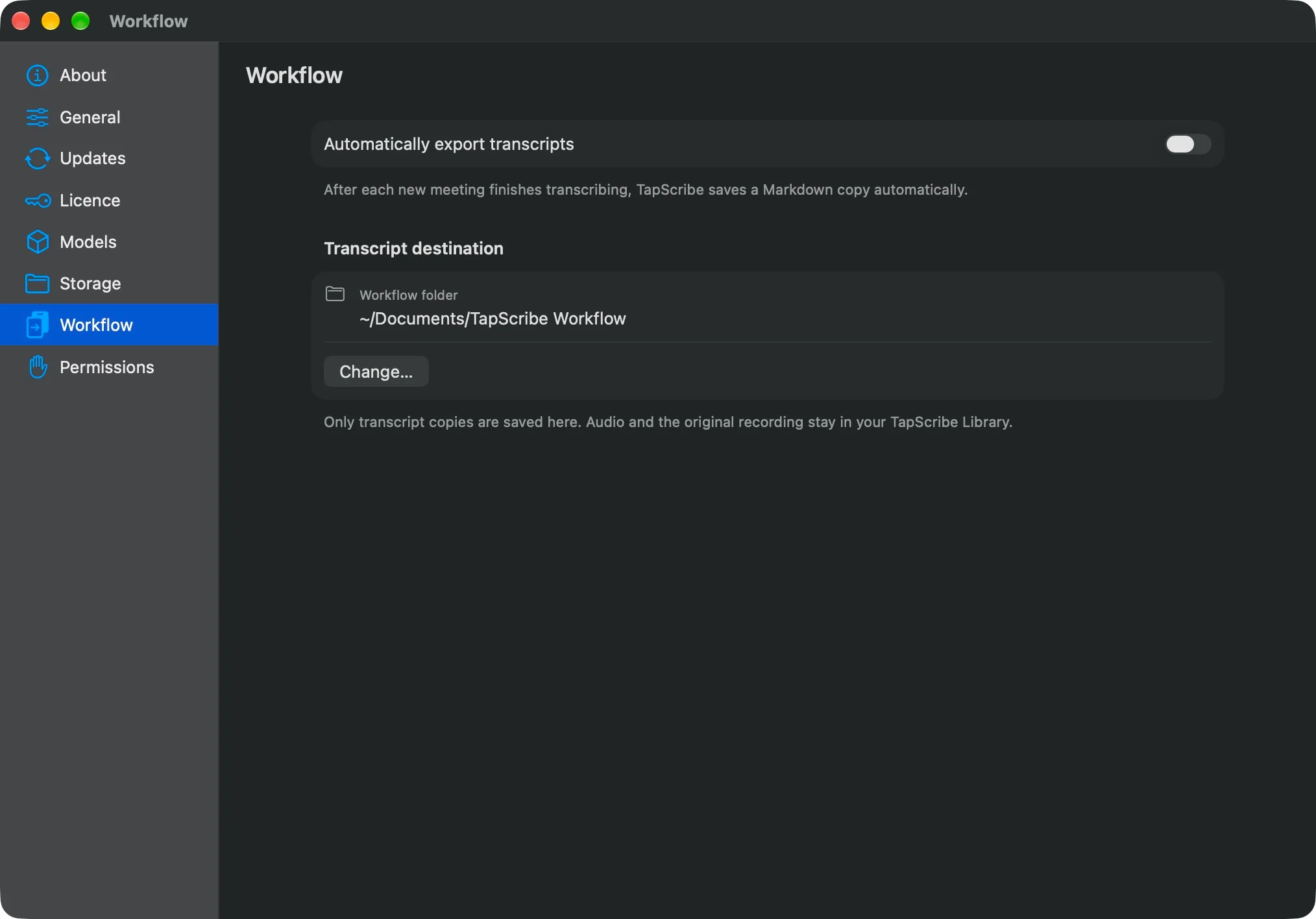
Sensitive conversations
TapScribe can reduce the need to send meeting audio to a transcription provider. You still need to consider recording consent, access to your Mac, storage and backup choices, your organisation’s policies and any professional requirements that apply to the conversation.
TapScribe does not claim that local processing alone establishes legal, financial, healthcare, HR or other profession-specific compliance.
See it in practice
Review the requirements and installation path before starting the 14-day trial.