

You finish a client call, open your project notes and remember the direction of the conversation. What you cannot quite remember is the wording. Was that a decision, an idea to explore or a request for the next meeting?
A transcript gives you something to return to. Keeping it in Obsidian puts that record beside your own thinking, project links and next actions. You can write a short useful note without trying to reconstruct the whole conversation from memory.
This guide uses TapScribe to record and transcribe on an Apple Silicon Mac, then deliver a Markdown copy into an Obsidian vault. It needs macOS 15 or later and supports English transcription. You do not need an Obsidian plugin for this workflow.
What goes into the vault
An Obsidian vault is an ordinary folder of files. TapScribe’s Workflow setting can save a transcript as a Markdown file inside that folder. Obsidian can then show it as a note.
The distinction between Storage and Workflow matters here. Storage holds TapScribe’s original recordings, audio and related files. Workflow delivers a separate text copy. Choose a Workflow folder inside your vault if you want transcripts in Obsidian while leaving the audio in TapScribe.
TapScribe does not write a meeting summary or decide your action items. You get the transcript to review and the original recording to check when the wording matters.
1. Create a meeting inbox
In your Obsidian vault, create a folder such as Meetings/Inbox. A dedicated inbox makes new transcripts easy to find and keeps them separate from notes you have already reviewed.
Check where that vault lives. A folder synced through iCloud, Dropbox or Obsidian Sync may upload the exported text. Local transcription describes where speech becomes text; it does not stop a destination you choose from syncing the result.
2. Connect TapScribe to that folder
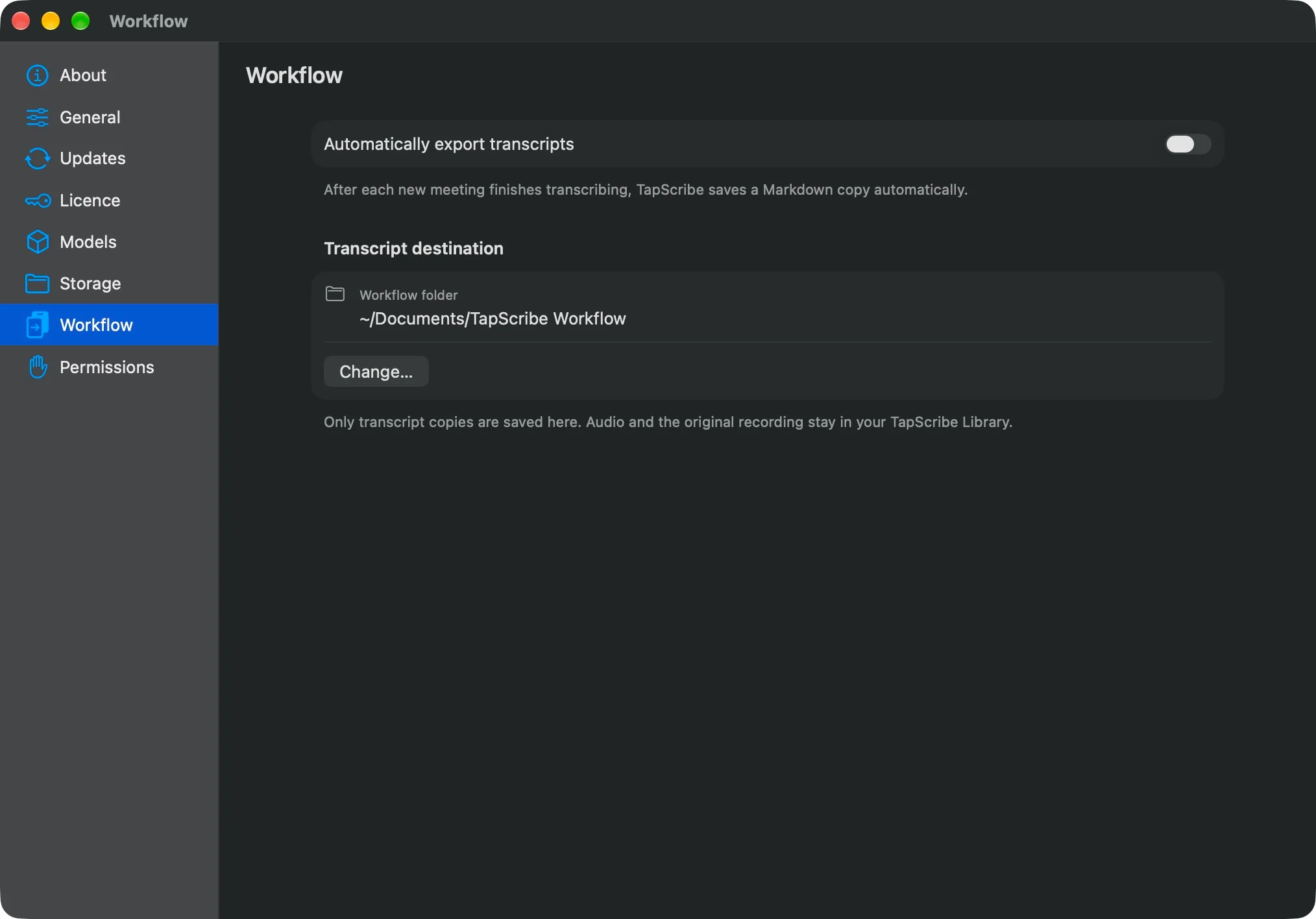
Open TapScribe → Settings → Workflow. Next to Workflow folder, choose Change… and select the inbox you created. Turn on Automatically export transcripts.
The default destination is ~/Documents/TapScribe Workflow. The recording library on a new installation defaults to ~/Documents/TapScribe. Both can already sync if iCloud’s Desktop & Documents Folders option is enabled, so check the recording and export locations even if you keep the defaults.
Changing the Workflow destination affects recordings and imports you start afterwards. It does not move older exports, redirect waiting exports or send your entire existing Library into the vault.
Make a short new test recording and let transcription finish. Use Show in Finder in Workflow to check that a .md file arrived, then open that note in Obsidian. This small check confirms the destination before you depend on it for a client call.
The export instructions explain manual exports, missing folders and retrying waiting items.
3. Record the conversation
Complete TapScribe’s first-run setup before an important call. That includes the speech-model download, microphone and Mac audio permissions, and Audio Check.
Before a later meeting, especially after changing headphones or microphones, make a short test recording. Speak, play some audible media on your Mac, then stop and check playback.
When the real conversation begins, choose Record meeting in the Library or start from the menu bar. Me is your microphone. Them is the audio playing through your Mac. These are audio sources, not separate named people for every participant on a group call.
Make sure the participants understand that you are recording and follow the requirements that apply to the conversation. Recording without a meeting bot does not remove that responsibility.
Stop when the conversation ends. TapScribe transcribes locally using the downloaded model. With Workflow enabled and the destination available, the completed transcript is copied into your meeting inbox.
4. Turn the transcript into a useful project note
Open the new transcript in Obsidian. Link it from the client or project note where you already keep context. Above that link, write a short note in your own words:
- What changed in this conversation?
- What did we actually agree to do?
- What needs checking before I act?
Keep the transcript as the source and your interpretation as a separate note. When a name, number or commitment looks wrong, return to the recording in TapScribe and listen. Transcription can make mistakes, particularly with overlapping speech, unfamiliar names and poor audio.
This is where the workflow earns its place. The transcript keeps the detail available; your project note keeps the next action visible.
Existing meetings and later corrections
For a meeting already in your Library, open More actions (…) → Export Transcript… and save the Markdown file into your inbox under a new filename. This exports the full transcript, even if you are viewing only Me or Them. You can also use Copy Transcript, Copy Me or Copy Them and paste into a note when you want to choose which source’s text to include.
An exported note is independent. Renaming or re-transcribing a recording does not silently rewrite that note. If you want an updated copy, export deliberately and check before replacing anything you have edited.
If a folder becomes unavailable, check Needs attention in Workflow and restore each waiting item’s original folder path. Choosing a new destination or Restore Default does not redirect those items. Check the current destination is available, turn Automatically export transcripts back on if it was disabled, then choose Retry Waiting Exports. If the original path cannot be restored, manually export a copy to your inbox instead. The recovery instructions also cover existing copies that need review. The original recording stays in TapScribe when delivery fails.
Keep the privacy boundary clear
The speech model downloads once during setup and transcription runs on your Mac. Licensing and update checks use the network separately. Exported text follows the storage and sync settings of the vault you chose; sharing a vault or using additional plugins can change who or what can access it.
Read Storage and privacy before choosing a shared or synced destination. For client work, make that choice deliberately.
Start with one short recording and one exported note. If that makes your next client follow-up easier, use the same inbox for the next conversation. The TapScribe manual covers setup and daily use, and the download page explains requirements and the 14-day trial.