

TapScribe documentation
Export transcripts
Copy text or deliver a separate Markdown file into your notes workflow.
Apple Silicon · macOS 15 or later · English transcription
From meeting to your notes
The workflow is record → transcribe → export a Markdown copy → review or process it in your chosen app.
TapScribe keeps the original recording and transcript in its Library. Settings → Workflow can automatically deliver a separate .md transcript to an Obsidian vault, a project folder or a folder watched by another tool. Export does not move the original recording, and TapScribe does not run that other tool or generate a summary for you.
For example, choose an Inbox/TapScribe folder inside your Obsidian vault. After a new meeting finishes transcribing, open the exported note in Obsidian, check its wording and add your own decisions and next actions. If you use another processing tool, choose its input folder instead and configure that tool separately.
See an exported example
Open the example Markdown transcript. This fictional example was transcribed locally and exported by TapScribe. It includes the recording title, date, duration and timestamped Me/Them passages. The audio stays in the recording library; it is not embedded in the Markdown file.
Compare it with the completed Library view. Any summary, decisions or next actions you add afterwards are your own notes, not generated TapScribe output.
Copy a transcript
Select a ready recording in the Library. With All selected, Copy Transcript copies the complete transcript. Select Me or Them to use Copy Me or Copy Them, which copies only that recorded source’s passages. Them includes all remote participants; it is not a filter for one named person. Imported files have a single-source Copy Transcript button.
Paste into the notes app of your choice and inspect the result. A pasted copy follows that app’s privacy and sync settings.
Export one Markdown file
Select a ready recording, open More actions (…) beside its title, then choose Export Transcript… to save a Markdown copy. Choose a new filename; TapScribe does not overwrite an existing file through this action.
Markdown exports contain the full transcript. Neither manual export nor automatic Workflow export follows the All/Me/Them viewing filter. Use Copy Me or Copy Them if you only want one source’s text.
Manual export is useful for an older recording or when you want a fresh copy after renaming or re-transcribing. Keep any notes you have edited separately; do not assume an earlier export will be updated for you.
Automatic Markdown export
- Open Settings, then select Workflow.
- Review the Workflow folder. The default is
~/Documents/TapScribe Workflow; check whether Documents syncs to iCloud. - Choose Change… if you want another destination, such as a dedicated inbox inside your Obsidian vault.
- Turn on Automatically export transcripts before starting the recording or importing the file you want exported.
- Make a short new recording, or import a supported file, and let transcription complete.
- Choose Show in Finder and open the resulting
.mdfile to check it.
Workflow sends a transcript-only Markdown copy to the destination. The original audio and recording metadata stay in TapScribe’s recording storage. Use Workflow rather than changing Storage if your goal is to send text into a second brain without large audio files.
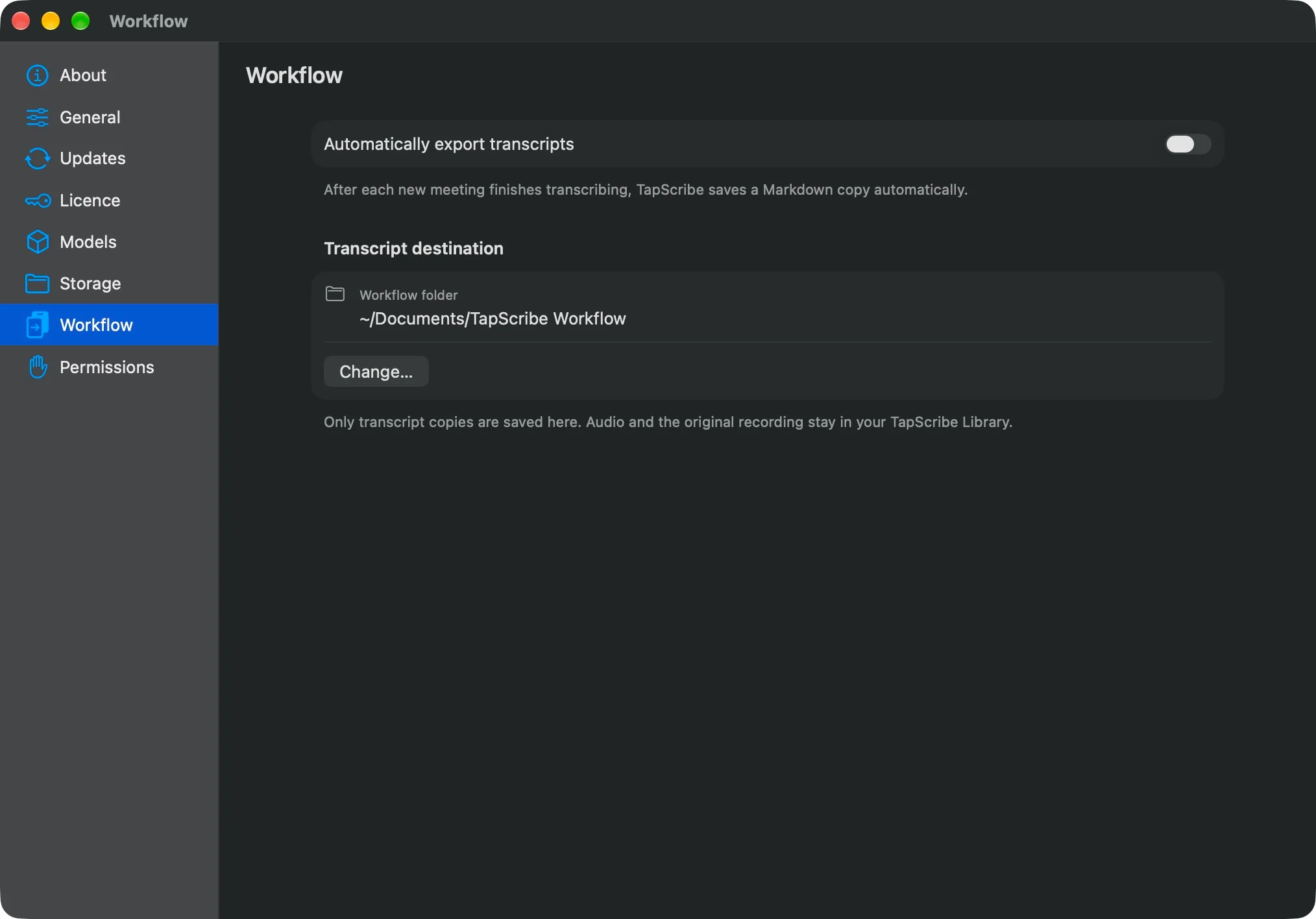
For a detailed vault example, follow Save meeting transcripts to Obsidian on Mac. The screenshot above shows where to configure Workflow; automatic export is switched off in that example.
What happens to existing copies
Automatic export applies to recordings or imports started with it enabled. Enabling it does not automatically export your entire old library. Changing the destination does not move old exports or redirect waiting ones. Each eligible recording keeps the destination selected when that work began.
An exported note is independent. Renaming, editing, moving or deleting that note does not alter the original recording. Renaming or re-transcribing the original does not silently rewrite the note. Use a deliberate manual export if you want another copy.
Recover a missing destination
If Workflow says Folder unavailable, open Settings → Workflow and check the folder paths under Needs attention. Each waiting item still targets its original path.
- Reconnect the drive or restore the original folder at the path shown for the waiting item.
- Check the current Workflow folder as well. Locate Folder… selects the destination for future work; Restore Default selects the default. Neither redirects existing waiting exports.
- Turn Automatically export transcripts back on if it is off. TapScribe can turn it off when it detects an unavailable destination, and retries remain paused while it is off.
- Choose Retry Waiting Exports, then use Finder to check that the expected copy arrived in its original destination.
If you cannot restore the original destination, select the ready recording and use More actions (…) → Export Transcript… to save a deliberate copy elsewhere. A manual export does not clear that item’s waiting automatic export, so check for a later duplicate if you restore the original destination.
An export failure does not turn a successfully transcribed recording into a failed recording. Its original audio and transcript remain in the Library.
Resolve a copy that needs review
If an existing file prevents a safe retry, or a transcript changes after an export was prepared, the item can need review. Retry Waiting Exports does not resolve those cases automatically.
Select the recording and open More actions (…) beside its title. Inspect the existing note before choosing:
- Keep Existing Workflow Copy to accept the copy you already have and clear the pending delivery without overwriting that note.
- Save Another Workflow Copy… to save the prepared export under a new filename, keeping the existing note intact.
The prepared export may be older than a transcript you have since re-transcribed. Use Export Transcript… for a fresh copy of the current full transcript. If another copy cannot be saved, keep the existing files and contact support with the displayed message.
If the destination uses iCloud, Dropbox, Obsidian Sync or another sync service, that service may upload the exported text. Read Storage and privacy.