

TapScribe documentation
Review and play back
Read, listen, filter and copy the useful parts of a conversation.
Apple Silicon · macOS 15 or later · English transcription
Open a recording
Choose a meeting in the Library sidebar. The detail view brings its transcript and retained audio together. A recording still being processed may not have a finished transcript yet.
This example uses a short fictional conversation transcribed on the Mac. The timestamps, playback controls and source filters are the same controls you use for your own recordings.
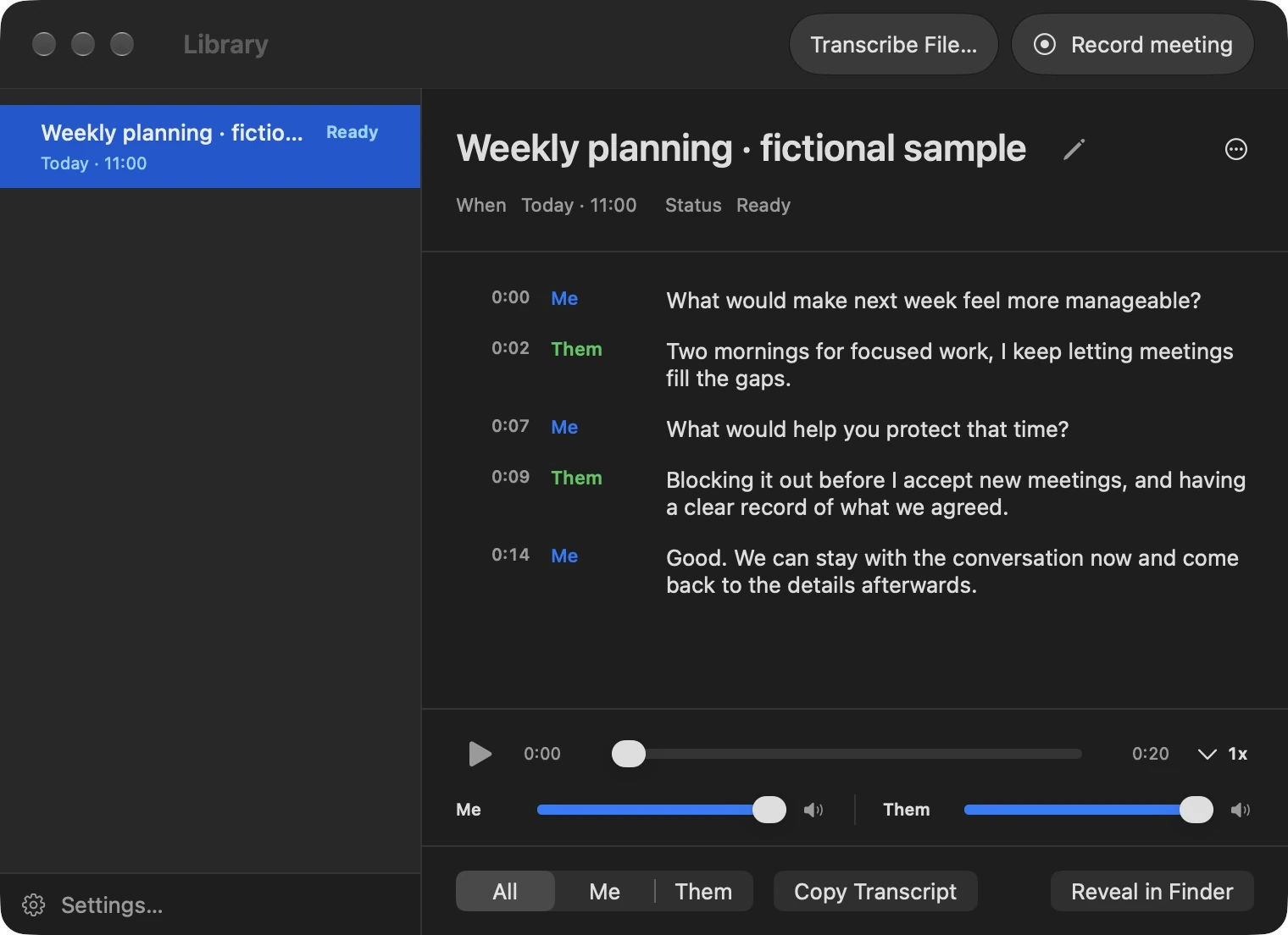
Open the full-size Library screenshot or see its exported Markdown.
Check wording against audio
Use the playback control below the transcript to listen. The timeline lets you move through the recording; the playback speed control changes listening speed. Use the Me and Them volume controls to make one recorded source easier to hear.
For a transcript with timestamps, click the timestamp beside a passage to jump to that point in the audio. Playback starts if it was paused. This is the quickest way to check a particular name, number or sentence without listening from the beginning.
A transcript is a working aid. Names, specialist terms, overlapping speech and poor audio can produce errors. Verify commitments, numbers and quotations against the recording before sharing them.
Filter a meeting transcript
Choose All, Me or Them to focus the transcript on the combined conversation or one recorded source. Them includes all remote participants. These filters do not establish who a particular remote person is.
Imported files have a single retained audio source and do not acquire the meeting’s Me/Them attribution. See Transcribe a file.
Copy or export text
The copy button follows the selected filter:
| Selected filter | Button | Text copied |
|---|---|---|
| All | Copy Transcript | The complete saved transcript |
| Me | Copy Me | Transcript passages from the microphone source |
| Them | Copy Them | Transcript passages from the Mac audio source, including all remote participants |
Imported files use Copy Transcript for their single-source transcript. Paste into your own notes and check the result before sharing it. The filters describe audio sources; they do not remove confidential information or verify a person’s identity.
Export Transcript… and automatic Workflow exports contain the full transcript, regardless of the filter you are viewing. Selecting Me or Them does not limit a Markdown export. Use the corresponding Copy button if you only want that source’s text.
For a Markdown file or automatic delivery into your notes folder, follow Export transcripts. Keep edits to an exported copy separate from the original; they do not sync back into TapScribe.
Rename or delete a recording
Use the pencil beside the title, or the row’s Rename… action, to give a recording a useful name. An existing Workflow copy keeps its own name and contents.
To remove a recording, use Delete Recording… in its actions menu, or right-click selected rows and choose Delete…. Read the confirmation carefully. This removes the selected recordings, audio and transcripts from the Mac and cannot be undone in TapScribe. Back up anything you need first. Independently exported or synced copies are not removed with the original.
Find the underlying files
Choose Reveal in Finder for the selected recording. Keep its files together if you are backing it up. Avoid editing or moving files while the app is recording or processing that item.
TapScribe does not include Library search, generated summaries or action-item extraction. Use meaningful titles and your own notes system to organise the useful result.