

TapScribe documentation
Record a meeting
Start and stop from the Library, menu-bar panel, Dock or keyboard, and find Settings.
Apple Silicon · macOS 15 or later · English transcription
Before the conversation
Make sure recording is appropriate and everyone has the notice or consent the conversation requires. Complete setup first. After changing audio devices, make a short test and listen back.
TapScribe captures audio playing on the Mac. Silence unrelated apps and notifications where practical so their sounds do not enter the recording.
Open TapScribe from Applications or the Dock. Once it is running, you can control the same recording from any of the places below. Starting in one place does not prevent you from stopping in another.
Choose your recording control
| Place | Start | Stop |
|---|---|---|
| Library | Record meeting in the toolbar or empty Library | Stop recording beside the timer |
| Menu-bar panel (HUD) | Click the waveform in the Mac menu bar, then the round record button | Click the square stop button in that panel |
| Menu-bar shortcut menu | Right-click or Control-click the waveform, then Record | Stop Recording in the same menu |
| Dock shortcut menu | Right-click the TapScribe Dock icon, then Record | Stop Recording in the same menu |
| Keyboard | Control–Command–R (⌃⌘R) | Press Control–Command–R again |
Record from the Library
- Open TapScribe from Applications or click its Dock icon to bring up the Library. You can also choose Open Library in the menu-bar panel or its shortcut menu.
- Choose Record meeting in the Library toolbar. A new, empty Library also offers a prominent Record meeting button.
- Wait for the recording timer to advance. To check the live Me and Them audio meters, open the menu-bar panel as described below.
- Return to your meeting app and keep TapScribe running.
- At the end, return to the Library and choose Stop recording beside the timer.
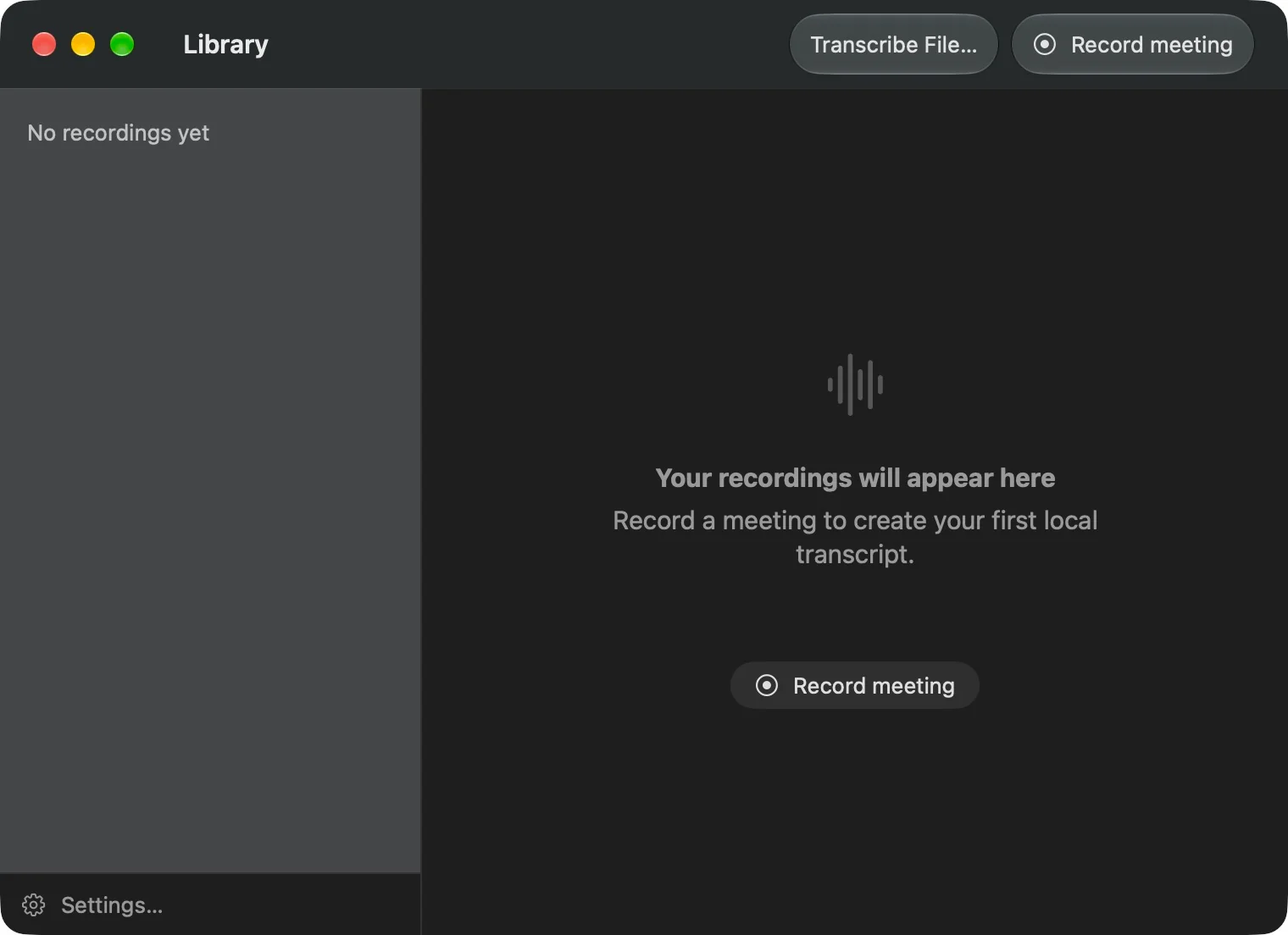
Start and Settings: the toolbar’s Record meeting is at the top right; Settings… is at the bottom left. An empty Library also has a central record button.
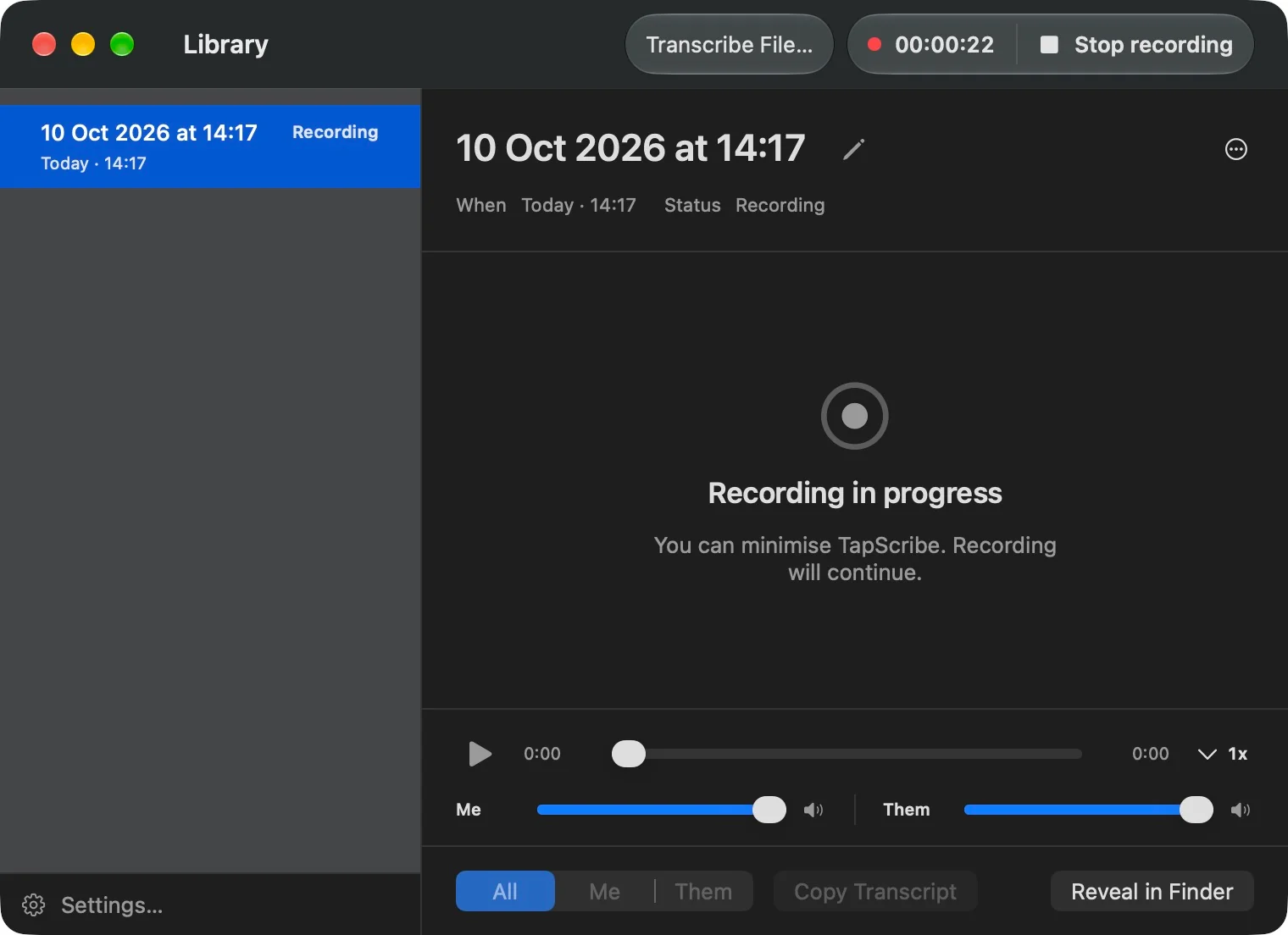
While recording: the top-right control changes to the elapsed timer and Stop recording.
Record from the menu-bar panel
The compact panel is also called the HUD. It lets you record without keeping the Library window in front of your meeting.
- Click the TapScribe waveform in the Mac menu bar to open the panel.
- Click the large round record button. Wait for Recording and the elapsed timer; Starting recording… means capture is still starting.
- Check the meters: Me is your microphone and Them is audio playing through your Mac. Speak to check Me, and listen for meeting audio while checking Them. A silent source will not show activity.
- Click outside the panel to dismiss it and return to your conversation. Dismissing the panel does not stop recording.
- Click the waveform again and click the square stop button when you are finished.
Choose Open Library in the panel to see your recordings. You can also select an item under Recent to open it in the Library. The gear button opens Settings.
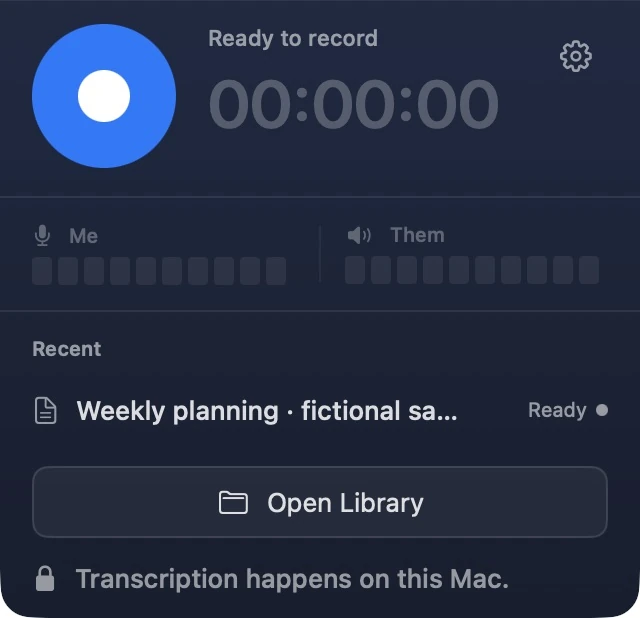
Start and Settings: click the large circle at the top left to record. The gear at the top right opens Settings; Open Library is near the bottom.
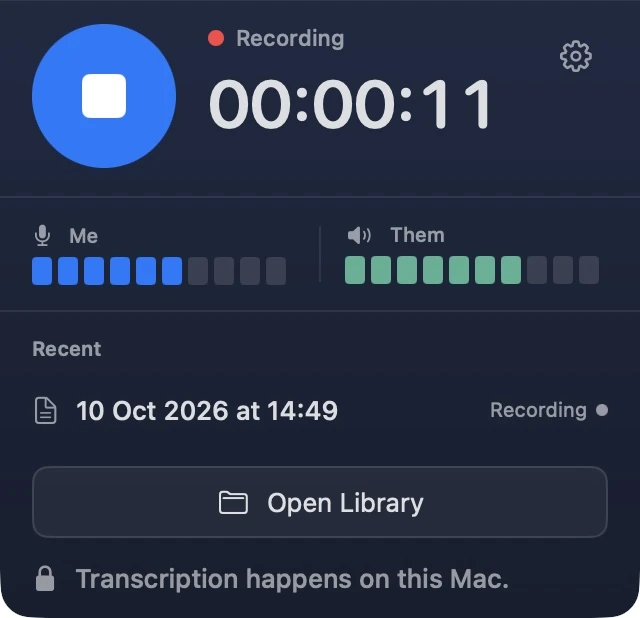
Stop: during recording, the circle changes to a square. Click it to stop; the red dot and timer show that recording is in progress.
If a control says recording is unavailable, follow the displayed guidance before trying again. Check permissions and audio, model setup, the recording folder or your trial and licence as appropriate.
Record from a shortcut menu
For a quick command without opening the panel, right-click or Control-click the menu-bar waveform, then choose Record. While recording, that command becomes Stop Recording.
You can also right-click the TapScribe icon in the Dock and choose Record or Stop Recording. Both menus include Open Library and Settings…. The Dock icon shows a REC badge during recording.
Keyboard shortcuts
Press Control–Command–R (⌃⌘R) to start recording; press it again to stop. Hold Control and Command together, then press R. TapScribe must already be running. This is a system-wide shortcut, so you can use it while your meeting app is in front.
The shortcut toggles the current state. Check the Library timer or menu-bar panel if you are unsure whether recording has started before pressing it again.
Open Settings → General → Shortcut to see Record / Stop. Restore Default Shortcut restores Control–Command–R. If the shortcut does not respond, use the Library or panel controls and check whether another app is using the same keys.
When TapScribe is the active app, Command–comma (⌘,) opens Settings.
Where to find Settings
You can open the same Settings window from any of these places:
- Library: choose Settings… beside the gear at the bottom of the sidebar.
- Menu-bar panel: click the gear button.
- Menu-bar shortcut menu: right-click or Control-click the waveform and choose Settings….
- Dock: right-click the TapScribe icon and choose Settings….
- App menu: bring TapScribe to the front, then choose TapScribe → Settings…, or press ⌘,.
Use General for the recording shortcut and opening at login, Storage for the recordings folder, Workflow for automatic transcript exports, and Updates for update checks. About shows the version and build to include in a support request.
Stop and transcribe
- Stop with any recording control above. All of them stop the same active recording.
- Keep TapScribe running while transcription runs on your Mac.
- Open the Library and select the completed recording when it is ready.
- Play back an important passage and check the transcript before relying on exact wording.
Closing the Library window or dismissing the HUD does not quit TapScribe or stop recording. Use a stop control explicitly. If you try to quit during a recording, TapScribe asks whether to Stop Recording and Quit or Keep Recording. For the normal workflow, stop first and wait for transcription to finish before quitting.
Recording and transcription are separate jobs. A queued or transcribing earlier meeting does not mean a new recording is already underway; check the live recording indicator for the current capture.
Send the transcript into your workflow
Keep the original recording in TapScribe and send a separate Markdown transcript to an Obsidian vault or another processing folder. Set the destination in Settings → Workflow and enable automatic export before your next recording. Follow Export transcripts for the complete setup, manual exports and recovery steps.
Name the recording
Select the recording and use the pencil beside its title, or right-click its row and choose Rename. Give it a useful project or meeting name without exposing sensitive details unnecessarily. Changing a title does not automatically rewrite a Markdown copy already exported to another folder.
If you cannot find the result
Check the Library and the current recording location under Settings → Storage. A change of storage location changes the library being shown; it does not move previous recordings. See Storage and privacy before moving or deleting folders. For a problem you cannot resolve, report it to support.