TapScribe documentation
Update TapScribe
Check for updates and preserve a reliable installed copy.
Apple Silicon · macOS 15 or later · English transcription
Check manually
- Open Settings → Updates.
- Choose Check now while connected to the internet.
- Review the available update and its release notes.
- Follow the updater’s download and installation prompts.
- After relaunch, check the version under Settings → About and open a recent recording.
A retrieval error means the check did not complete. It does not prove that you have the newest version. Retry later and contact support if it persists.
Automatic checks
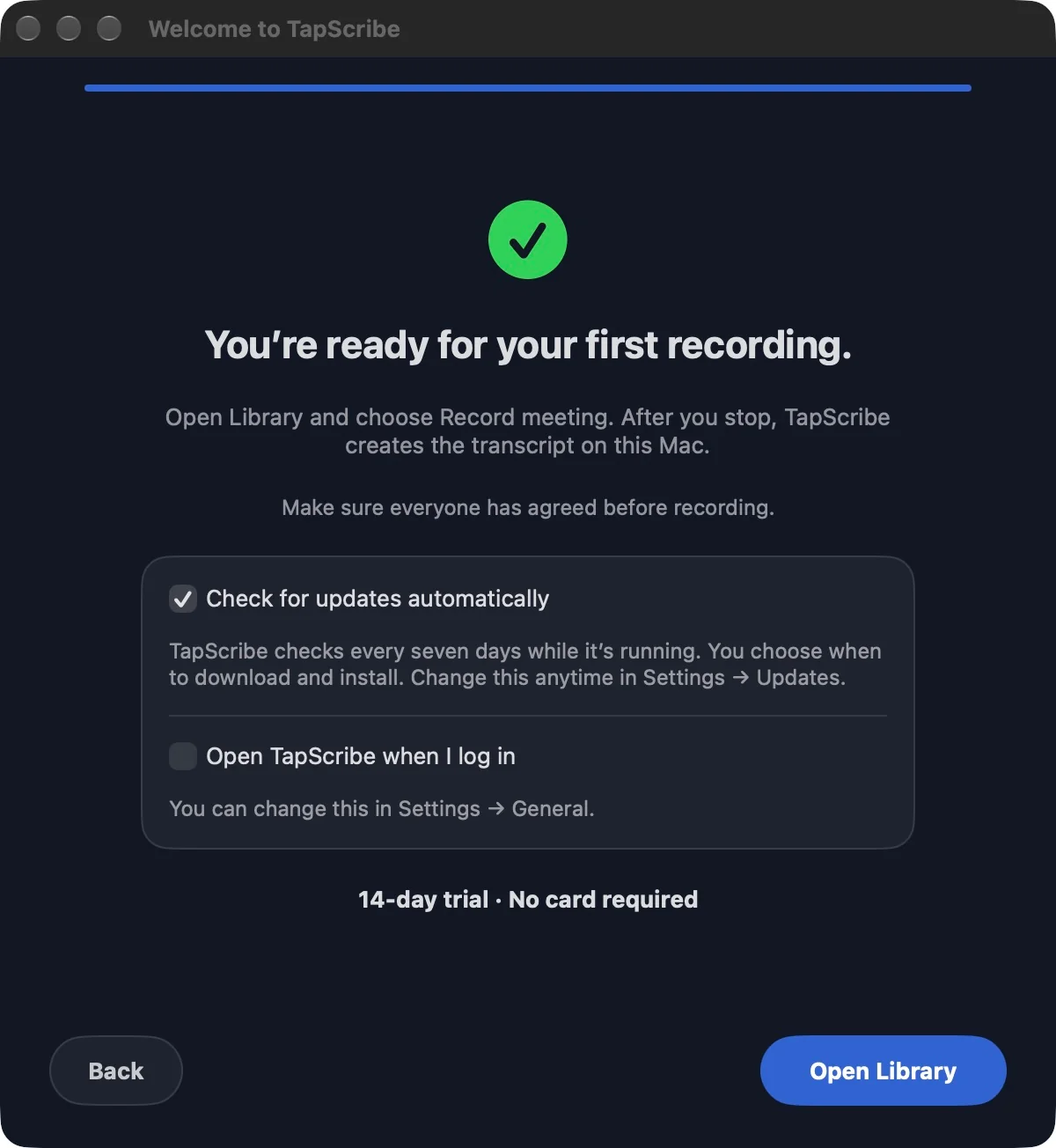
Weekly update checks are on by default for new users. You can turn Check for updates automatically off during setup or in Settings → Updates. An existing off preference is kept when upgrading.
When enabled, TapScribe checks every seven days while running and idle. An Update available notice appears in Library and the menu-bar panel when an update is found. Downloads and installation still require your approval. Turning the setting off leaves manual checks available.
Finish active work
Allow a live recording, import or transcription to finish before deliberately installing an update. TapScribe defers update installation while relevant work is active; do not force-quit it to rush the process. Return to the update when the app is idle.
Install an update manually
If your copy does not have Settings → Updates, use the installer from the Download page and follow the installation instructions. Finish recording and processing, then quit TapScribe before replacing the app in Applications. Keep your existing recording folders intact. You do not need to delete recordings, reset the Library or remove licence information to update the app.
Read Release notes for the changes and requirements. If macOS rejects an installer or an update fails verification, stop and contact support rather than bypassing the warning.
Choose during setup