

TapScribe documentation
Install and set up
Get TapScribe ready and make your first checked recording.
Apple Silicon · macOS 15 or later · English transcription
Before you start
You need an Apple Silicon Mac running macOS 15 or later. TapScribe transcribes English. Allow time and an internet connection for the initial speech-model download, approximately 465 MB. The Download page identifies the available installer and its requirements.
Complete setup before an important meeting. You do not need to enter card details to start the 14-day trial. Buying and activating later is explained under Trial and licence.
Before recording a sensitive conversation, check your storage and sync settings. New installations save recordings in ~/Documents/TapScribe. If iCloud’s Desktop & Documents Folders syncing is enabled, files saved there can upload to iCloud. Local transcription does not switch off that syncing. Choose and check your recording folder before your first recording.
Install TapScribe
- Download the installer from the Download page.
- Open the
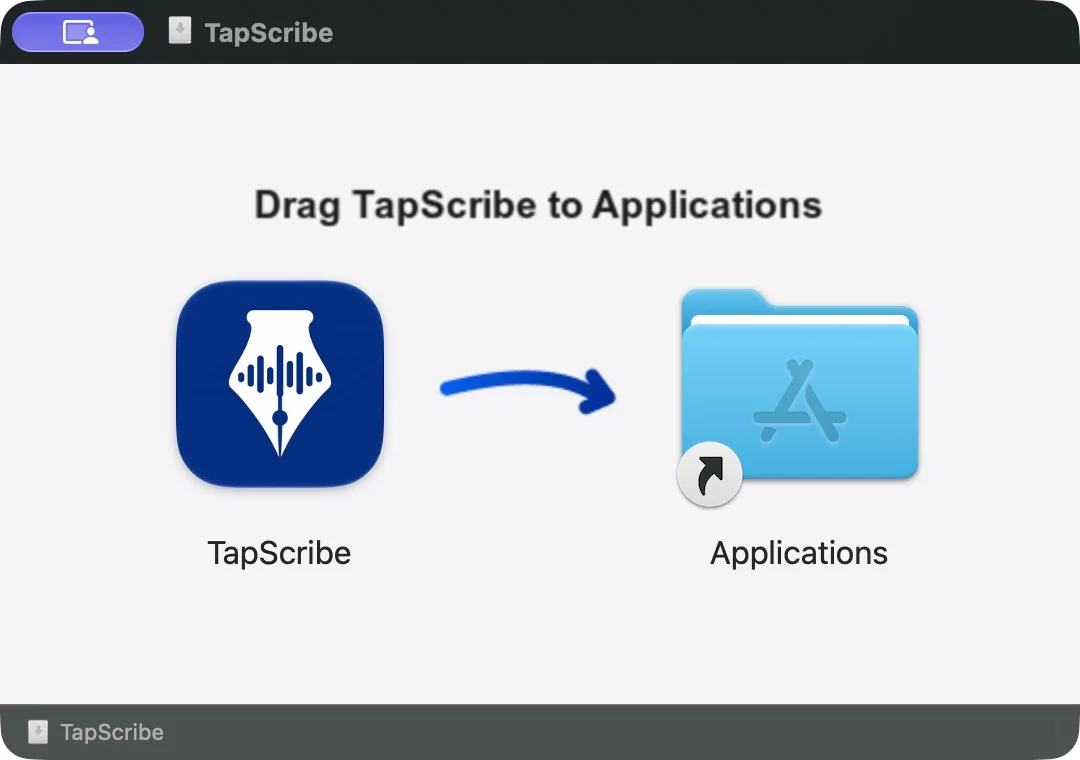
.dmgfile. - Drag TapScribe onto Applications in the installer window.
- Open TapScribe from Applications. Keep that installed copy as the app you launch.
If macOS rejects or cannot verify the download, stop and contact support with the message and version. Do not disable macOS security checks.
Complete the five setup steps
1. Welcome
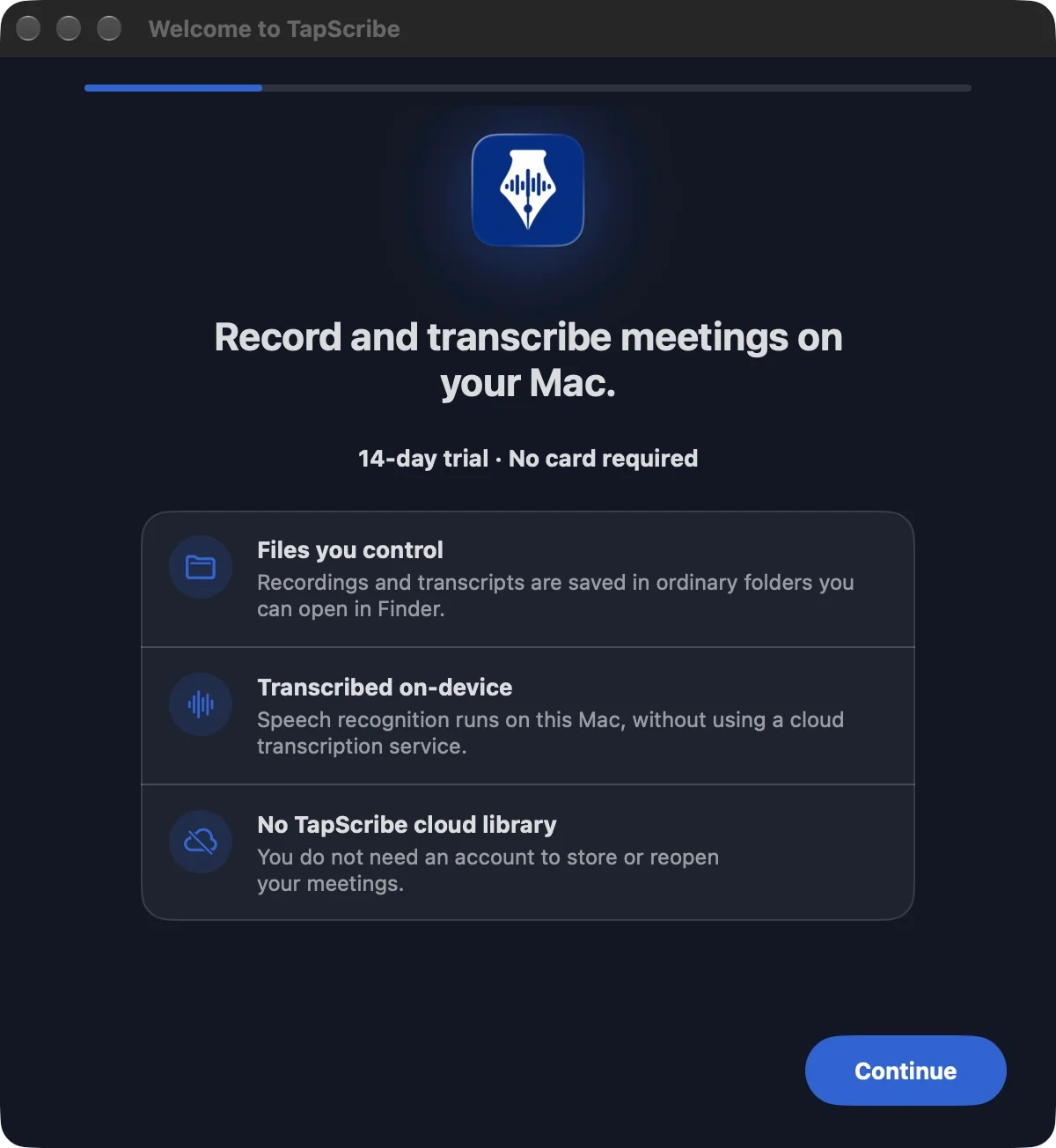
TapScribe explains where your recordings live and how local transcription works. Choose Continue.
2. Set up English transcription
Download and prepare the speech model, or continue if it is already ready. Keep the app open and the Mac connected. Preparation can continue after the download completes.
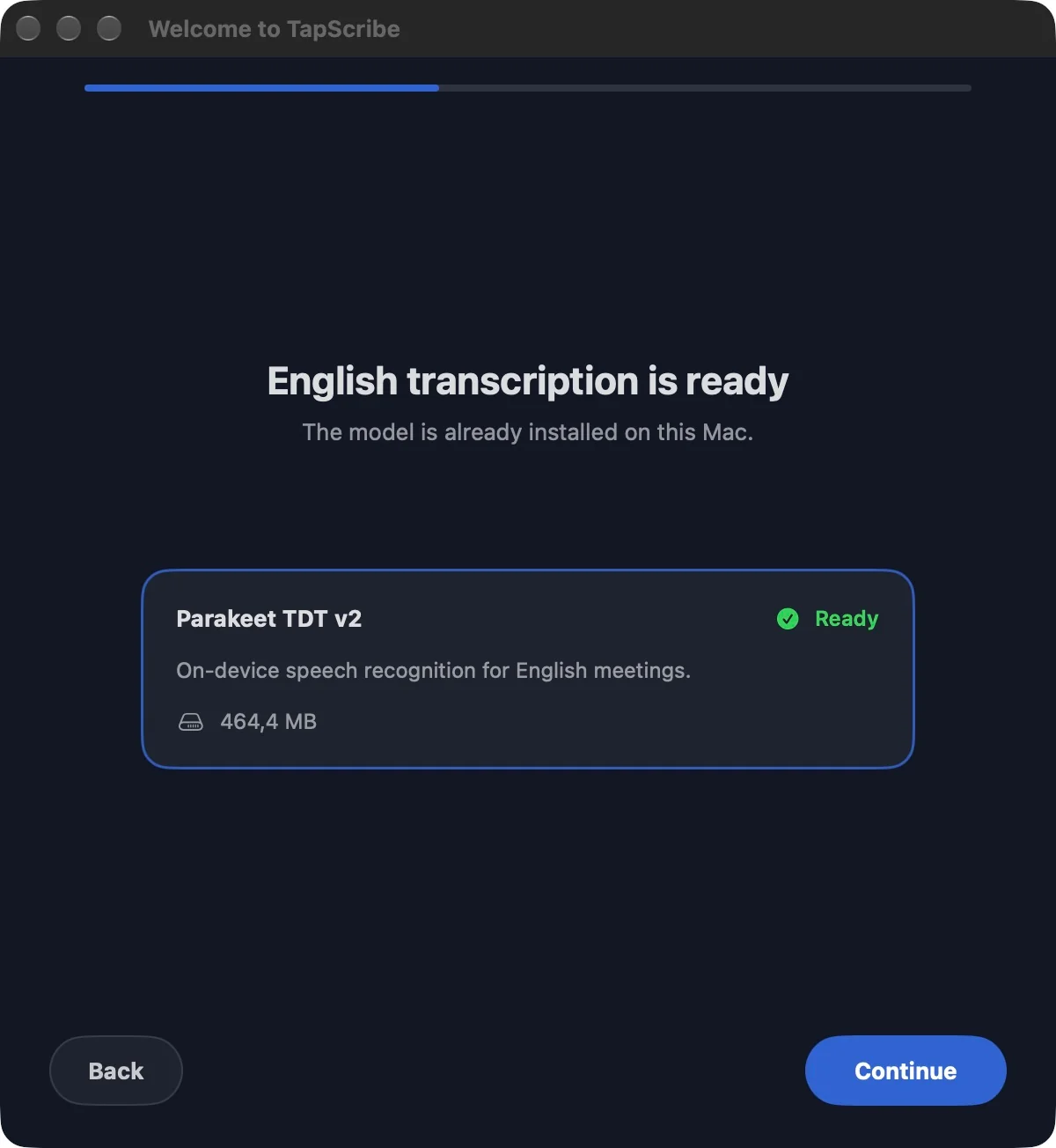
A new installation first offers the approximately 465 MB download. If the model is installed, setup shows it as ready.
3. Allow meeting audio
Allow microphone and Mac audio access. Use Allow microphone and Allow Mac audio as needed. If macOS asks you to quit and reopen the app, do so and continue setup.
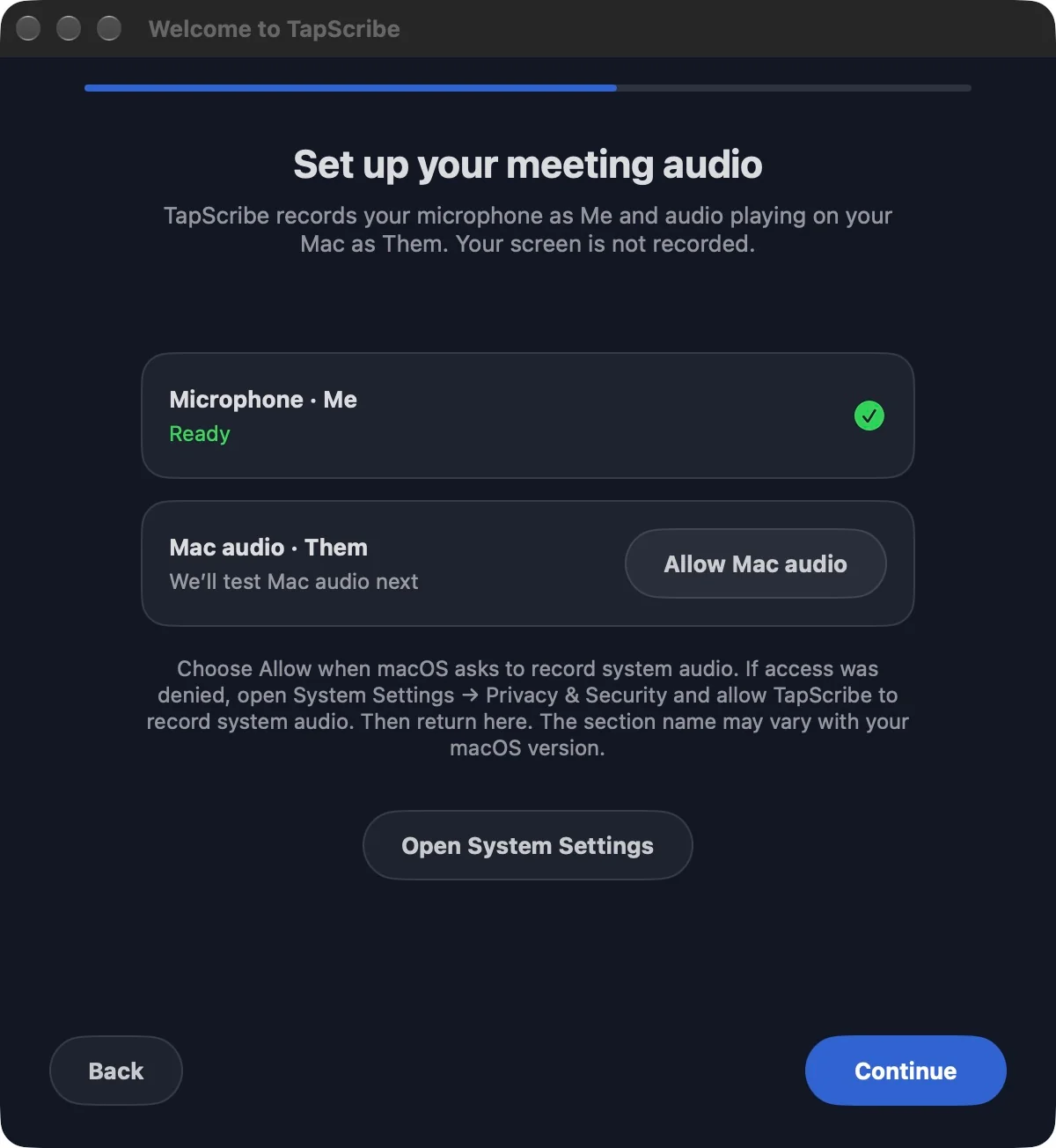
Microphone access may already be allowed. macOS permission prompts vary with your version of macOS.
4. Check both audio sources
Say a short sentence for Me, then choose Play test sound for Them. Confirm that both sources respond before continuing.
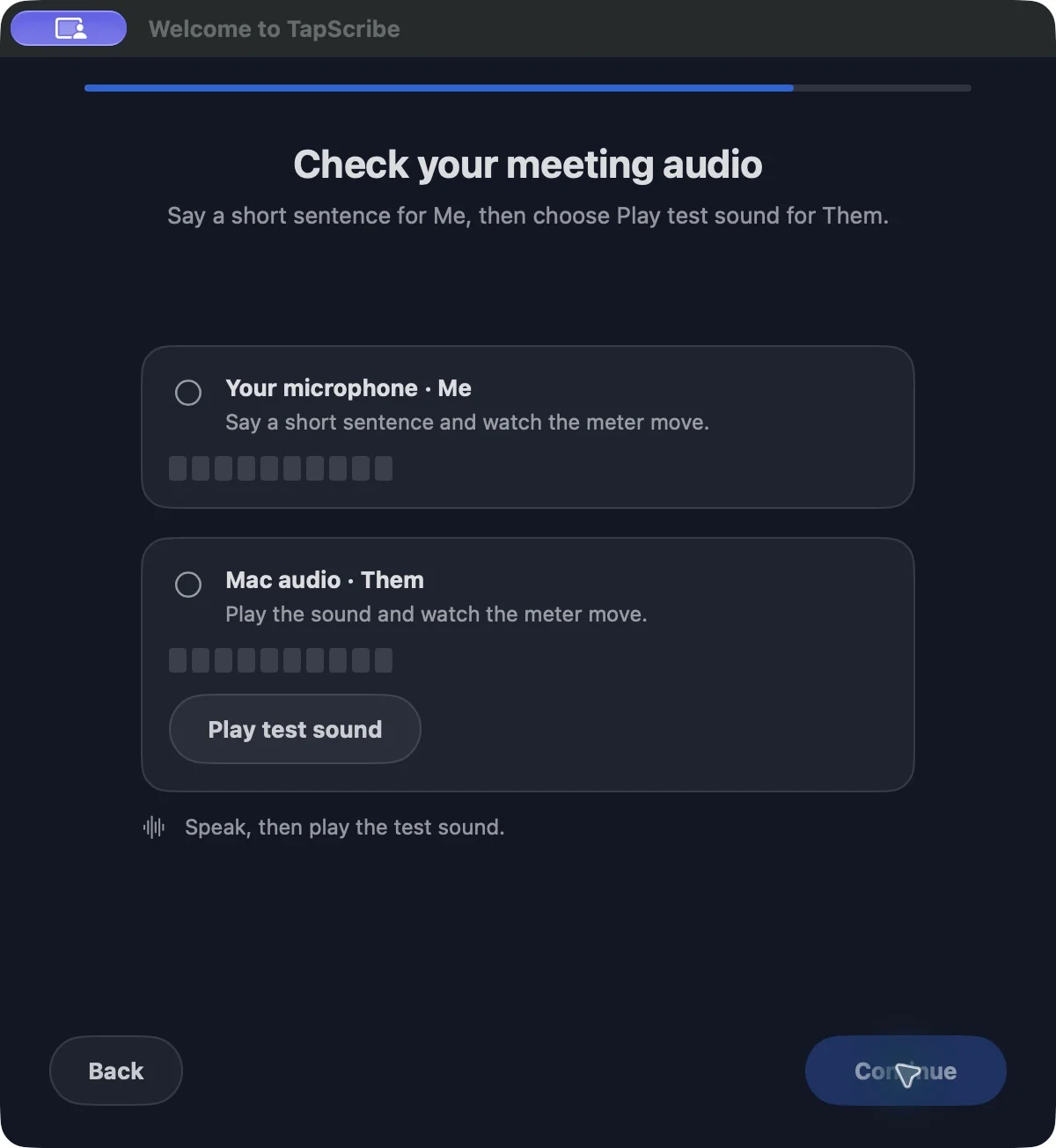
Continue becomes available after the required audio checks succeed.
5. Review your preferences
Check for updates automatically starts on for new users. TapScribe checks every seven days while it is running; you choose when to download and install. Open TapScribe when I log in starts off and is optional. You can change both choices later in Settings. Choose Open Library when ready.
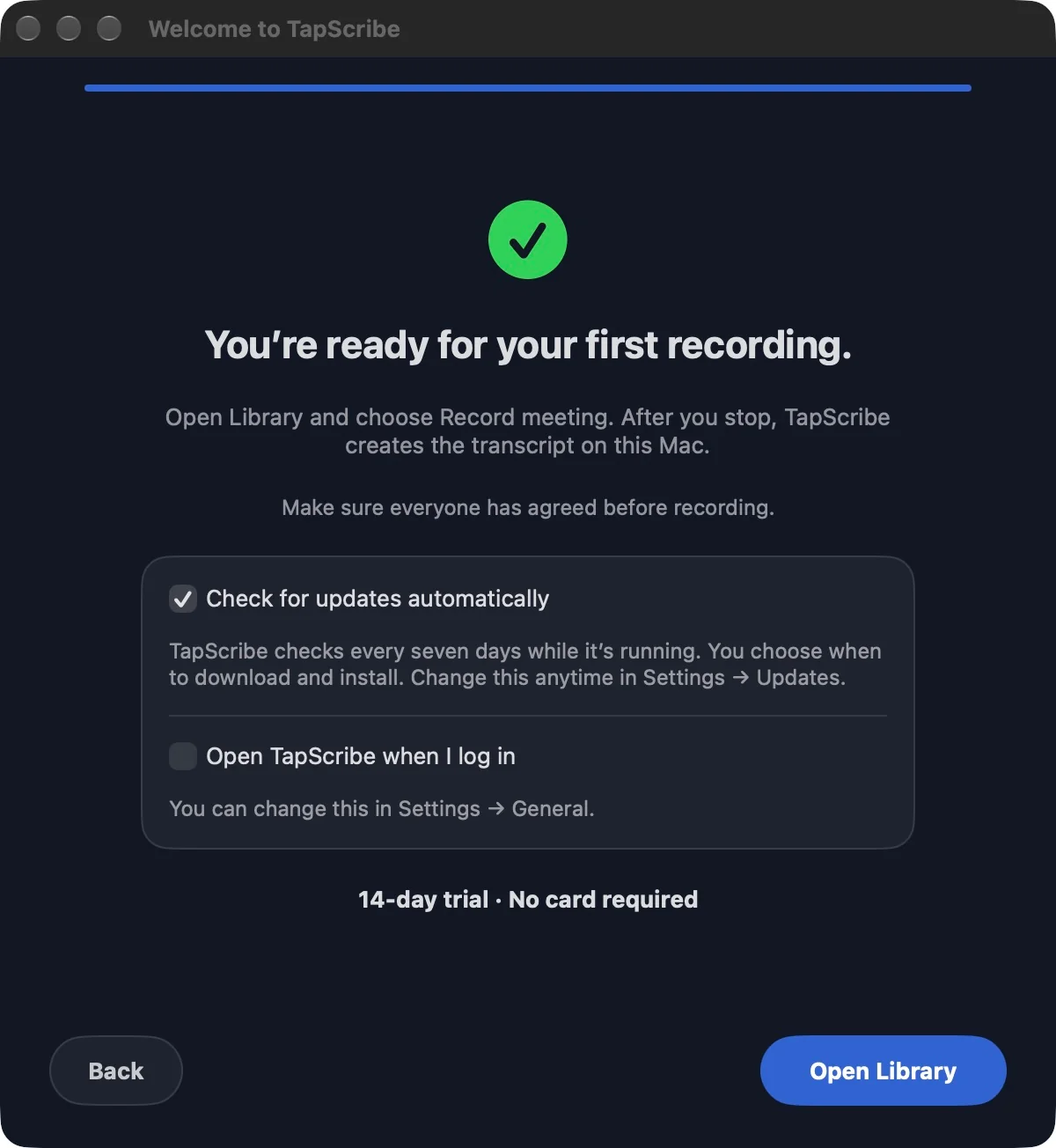
These two meters check audio sources, not individual people’s identities. See Permissions and audio if either source is missing.
Make a short test recording
Choose Record meeting in the Library. Say a few words and play a short piece of speech on the Mac. Stop the recording, wait for transcription to finish, then select it in the Library and listen back. Confirm that your voice and the Mac audio are present. This is also a useful check after changing a microphone or headphones.
Continue with Record a meeting.