

TapScribe documentation
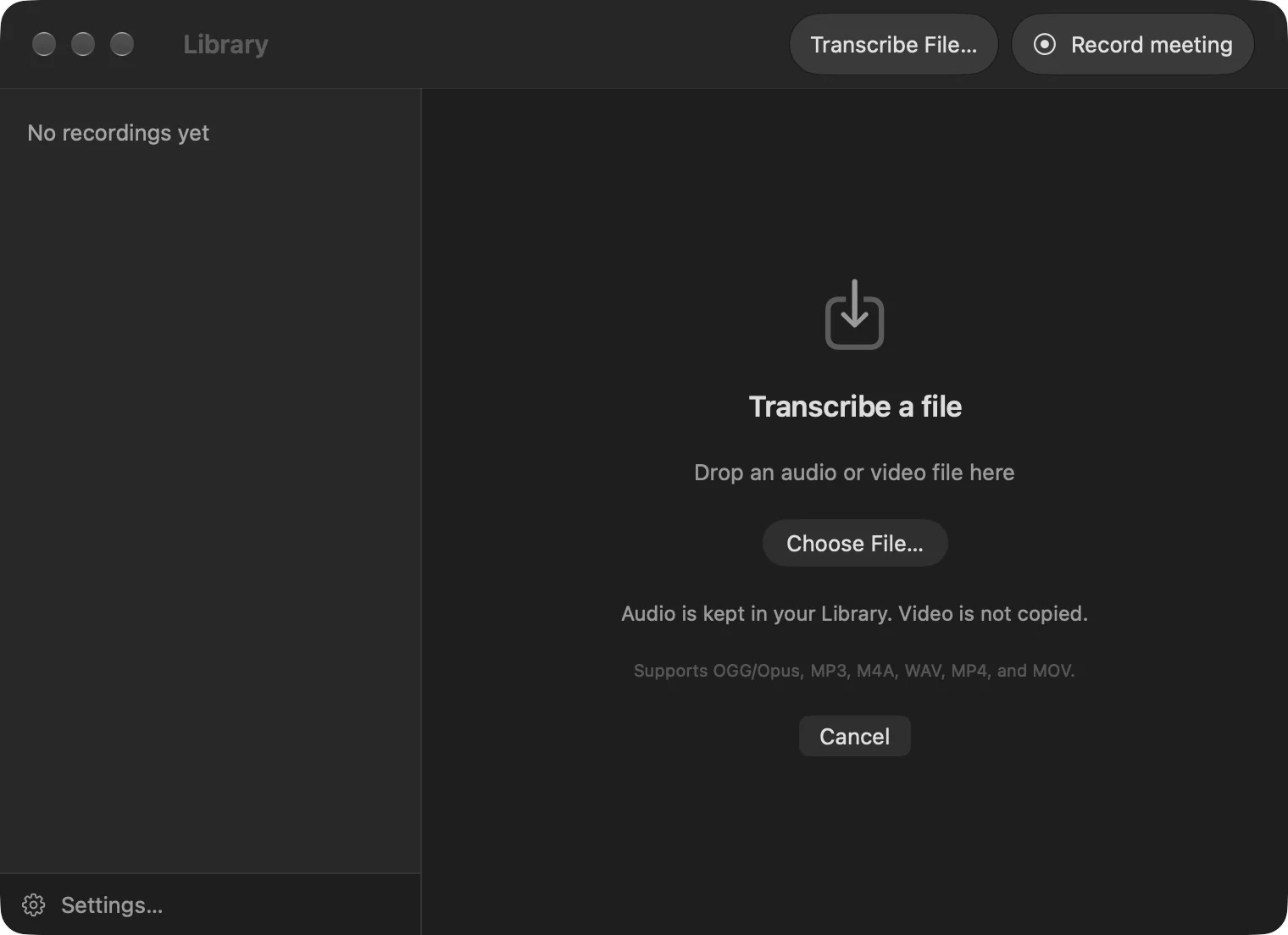
Transcribe a file
Bring an existing audio or video file into your local Library.
Apple Silicon · macOS 15 or later · English transcription
Choose one local file
- Open the Library and choose Transcribe File….
- Drop one audio or video file onto the import area, or choose Choose File….
- Keep the app open as the item moves through audio preparation and transcription.
- When it is ready, review the transcript and play the retained audio.
You can also drop a local file onto the Library’s detail area. Before accepting a file, Cancel or Escape returns you to the previous view.
File support and limits
Common inputs include MP3, M4A, WAV, OGG/Opus, MP4 and MOV. The actual audio codec matters as well as the filename extension; a file in one of these containers can still be unsupported or damaged.
Import one file at a time. A web address, streaming link or folder is not a supported import. Save the actual media file locally first if you have permission to use it. TapScribe does not sign in to WhatsApp or download YouTube links.
What is retained
TapScribe prepares a playable audio asset and transcript in its Library. It leaves your source file untouched and does not copy the full source video into the recording library. Imported audio is not divided into your microphone and remote-meeting tracks.
If you enable automatic transcript export before importing, the resulting transcript can also be delivered to your Workflow folder.
Understand the progress
Preparing audio means the app is making the audio usable. Queued means it is waiting for processing. Transcribing means the local model is working. A live recording can delay heavy preparation; let the recording finish rather than starting repeated imports.
Cancel or recover an import
Select the imported item in the Library and open More actions (…) beside its title. The available actions depend on how far the import has progressed:
- Cancel Import stops an import that is waiting, preparing audio, queued or transcribing. This does not alter the original source file.
- Retry Preparation tries a failed or cancelled preparation again using the original file location, when retained audio has not yet been prepared.
- Locate File… lets you select the original audio or video file if it moved or its drive was disconnected, then retries preparation.
- Retry Transcription is available after a transcription failure when the retained audio is already present. You do not need to import the same source again just to retry that step.
Read the displayed reason first and check that the source is available locally and playable. If a problem continues, try a short non-sensitive sample. Keep the original until you have checked the imported result. Report the format and error to support, rather than sending private media by default.